How to Invite Friends to Your Wedding on WhatsApp
WhatsApp is where friends actually read invites. Send personally, not in a group, with the link, the date, and one warm line, and track replies yourself.
In short
Message friends personally, one by one, never only in a group.
Lead with one warm line, then the date, city, and the invite link.
Track replies in your own list, since WhatsApp has no RSVP system.
What it means
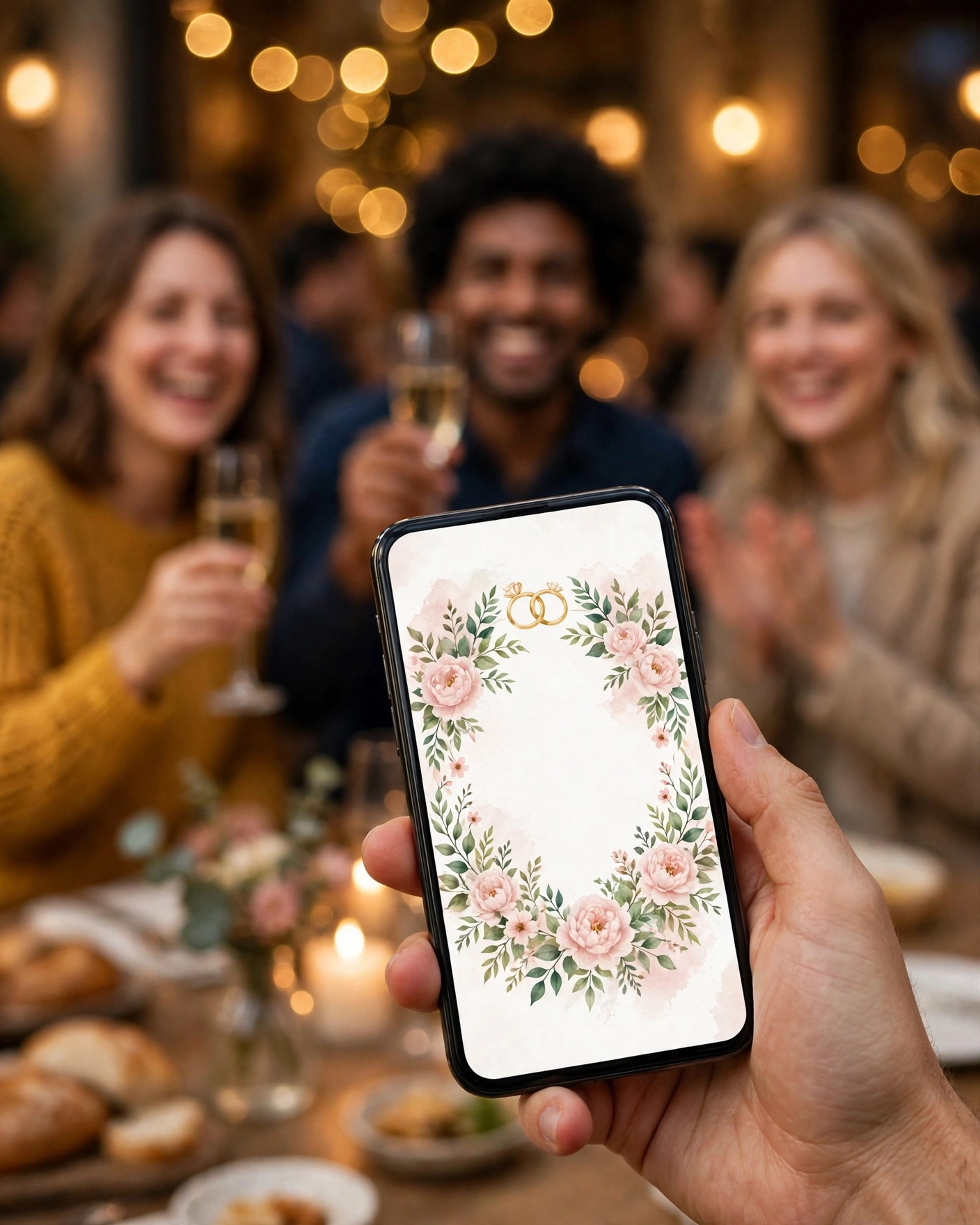
A WhatsApp wedding invitation is a personal message carrying your digital invite link, sent to friends on the app they already use daily. It usually opens with a personal line, gives the wedding date and city, and links to the full invite with events, venues, photos, and RSVP.
WhatsApp works for friends because it is informal and immediate. Friends reply fast, ask questions freely, and share excitement in the chat. It works less well for elders and formal family, who often prefer a call or a printed card. Match the channel to the guest, and WhatsApp becomes a strength rather than a shortcut.
What your invitation can do
A MyIndiAura invite can carry your story in more than words. It can open with a short entrance film, then move through your events, your venue details, and your photos in one smooth scroll. It can include an RSVP button so guests confirm in a tap, a map link so nobody gets lost, and a photo gallery from your pre wedding shoots. You can share it on WhatsApp, and you can update a detail later without reprinting anything.
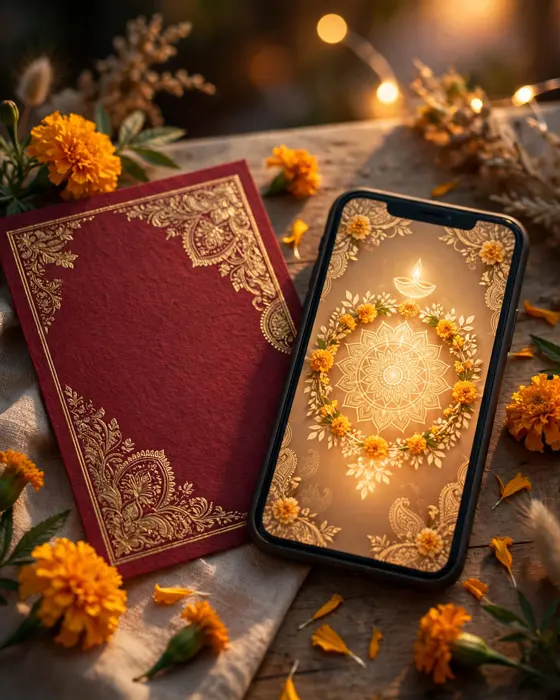
A MyIndiAura invite link is made for WhatsApp: it opens fast on a phone, shows the couple and the date at once, and lets friends confirm with the RSVP button inside the invite.
Options to consider
- A personal message, written to each friend with their name in it.
- A close friends group message, only after personal messages have gone out.
- A story or status teaser, building excitement before the invite itself.
- A reminder message, one week before, with map and timings.
Style tips
Personalise the first line, even if the rest is shared. A friend's name and one reference to your friendship turn a forward into an invitation. Friends can tell instantly whether a message was written for them or blasted to a list, and they reply accordingly.
Never send the link alone. A bare link looks like spam, and many friends will not tap it. One warm sentence before the link, and one practical sentence after it with date and city, is the minimum. If a friend has to ask what the link is, the message has failed.
On WhatsApp, a personal first line is the difference between an invitation and a forward.
What you need
- A friends list with correct phone numbers, checked before sending.
- Your digital invite link, tested on your own phone first.
- A short personal message template, with room for each friend's name.
- The wedding date and city, in the message itself, not only inside the link.
- A reply tracking list, updated as friends confirm.
- A reminder plan for the final week.
How to share it

- Message close friends personally first, with their names in the message.
- Message the wider friend circle next, in small batches you can track.
- Share a group message only after personal invites, for excitement and coordination.
- Follow up once, politely, with friends who have not replied.
- Send the final week reminder with map, timings, and dress code if any.
What it costs
A MyIndiAura invitation comes in three options. A Cinematic Invite costs ₹499, an Invite App costs ₹399, and an Invitation Suite costs ₹99. Pick the one that fits how you want guests to open the invite, and pay only for that option. There are no struck through prices and no hidden extras in the price you see.
How to create yours
- Pick a design from the designs page that matches your wedding style.
- Add your names, your events, your dates, and your venue details.
- Add your photos and check every spelling, especially names and dates.
- Preview the invite on your phone, exactly as a guest will see it.
- Fix anything that looks off, then confirm your order.
- Share the finished invite with your guests, starting with family.
Create your wedding invitation
Related reading
Found this useful? Share it with someone planning a celebration.
Share