Wedding Invitation QR Code RSVP Guide
A QR code on your wedding invitation lets guests RSVP in seconds. Here is where to put it, what it should open, and the mistakes to avoid.
What a QR code RSVP does
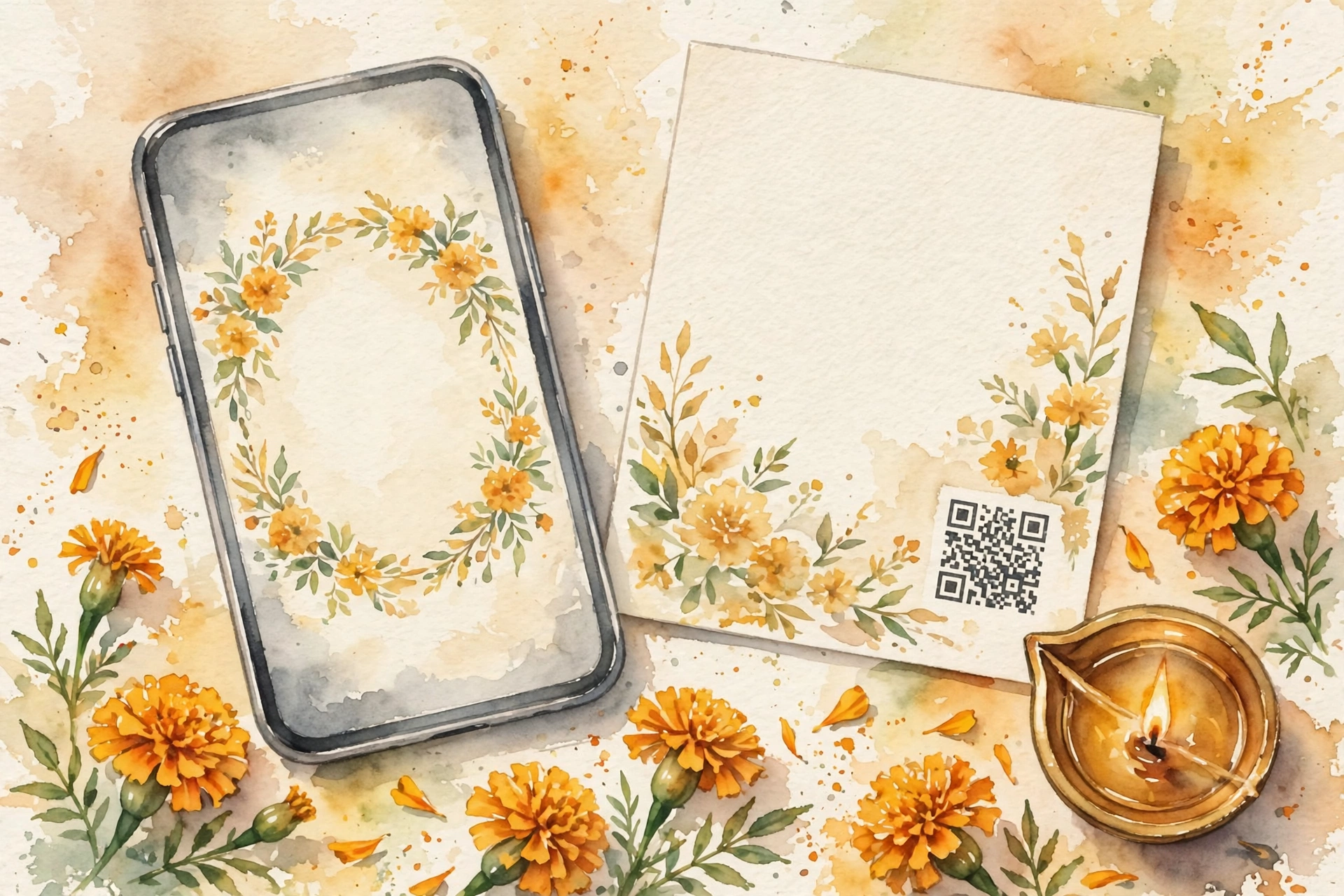
A QR code on a wedding invitation is a shortcut. A guest points their phone camera at it, and the RSVP page opens. No typing, no searching for a link, no lost message. For a wedding with hundreds of guests, that shortcut is the difference between replies that arrive and replies that never come.
The code itself holds nothing personal. It holds a link, usually to your invitation page or to a short RSVP form. The guest scans, taps the answer, and the reply reaches you. That is the whole job. Keep it that way, and guests will use it.
Where to put the QR code
The code needs to be easy to find and easy to scan. Put it in one place only, and make it big enough to scan from a normal reading distance.
- On the last page of the digital invite, beside the RSVP button, with the line: Scan to RSVP.
- On the printed card, at the bottom of the details page, with the line: Scan here to reply.
- On the WhatsApp message that carries the invite link, as a small image, for guests who prefer a code to a link.
- On the welcome sign at the venue, for guests who forgot to reply and want to do it at the door.
One code per invitation, one destination. Do not put a different code on every page. Guests get confused, and you get replies scattered across pages you never check.
What the code should open
The code should open the RSVP page, not the home page. A guest who scans and lands on a home page has to hunt for the reply button, and many will give up. Link the code straight to the page where the answer is one tap away.
That page should ask for three things only: the guest's name, whether they are coming, and how many people are coming with them. Add a food choice only if the caterer needs it. Every extra question costs you replies.
How to make the code
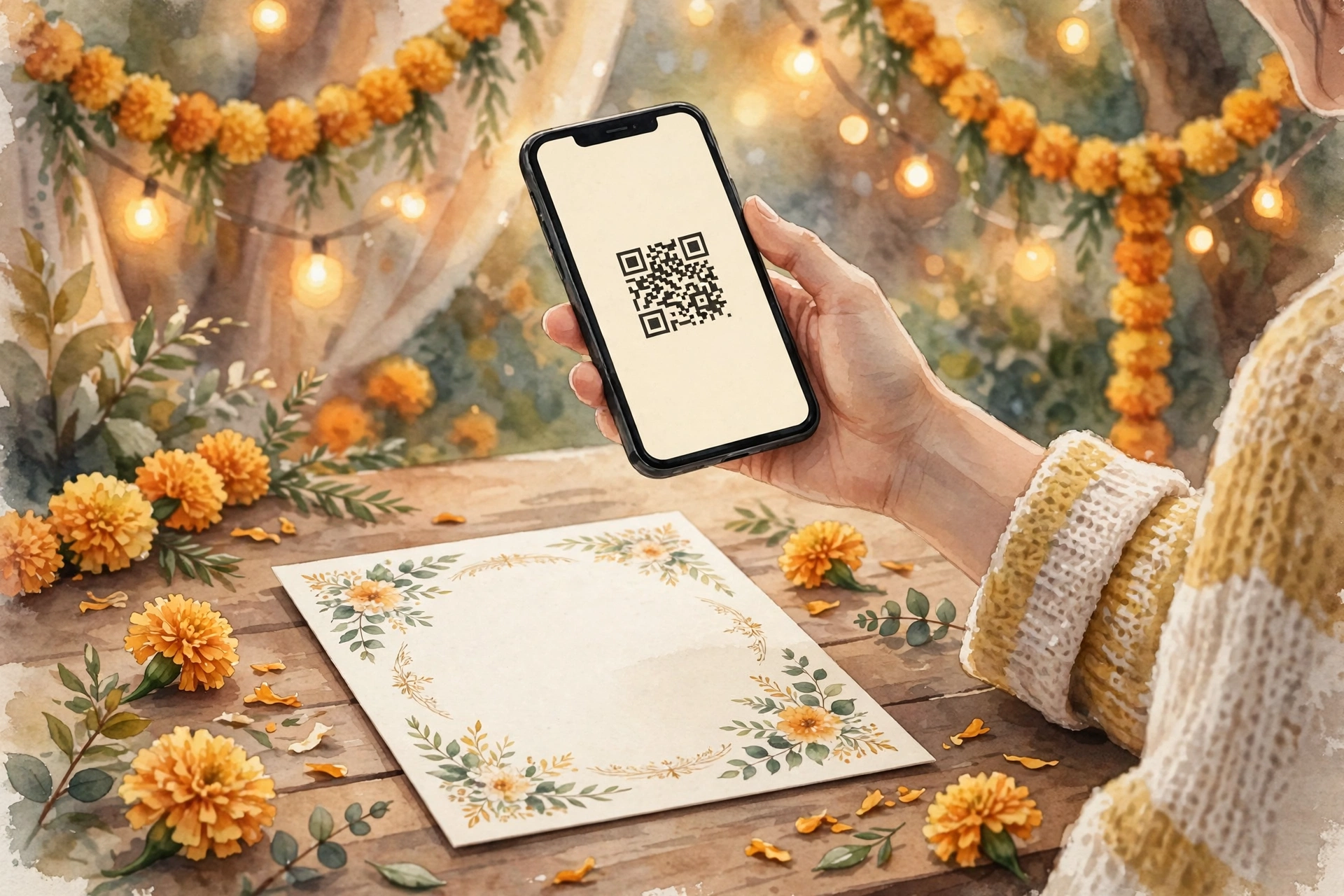
Make the code from your final invitation link, not from a draft. If the link changes later, the printed code breaks, and every printed card becomes useless. So finish the invitation first, copy the final link, and only then make the code.
Use a free QR maker, and test the code before you print anything. Print one test card, scan it with two different phones, and check that the RSVP page opens fast. If the code is too small, too pale, or printed over a busy pattern, phones will struggle. A plain white square behind the code, with a clear border, fixes most scan problems.
The wording around the code
Guests who have never scanned a code need one plain line telling them what to do. Keep it short and friendly.
- Scan to RSVP. It takes ten seconds.
- Scan here to let us know you are coming.
- Please scan and reply by [Date], so we can save your seat.
- No app needed. Just point your camera at the code.
- Coming with family? Tell us how many, on the same page.
Put the reply by date next to the code, not hidden in the text. Guests remember the date when it sits beside the action they need to take.
Mistakes to avoid
The most common mistake is a code that opens the wrong page. The second is a code printed too small, or over a dark background, so phones cannot read it. The third is no reply by date, so guests put it off and forget.
Another mistake is asking too much on the RSVP page. A guest who has to fill in ten fields will close the page. Name, coming or not, and headcount is enough. You can ask about food and travel later, in a personal message to the guests who said yes.
What it costs
On MyIndiAura, a Cinematic Invite is ₹499, an Invite App is ₹399, and an Invitation Suite is ₹99. The RSVP page and the link come with the invitation, so the QR code itself costs nothing extra. You make the code from your invitation link with any free QR maker, print it on the card, and you are done.
How to create your QR code invitation
- Build your invitation first at myindiaura.com/create, with the RSVP page finished.
- Copy the final invitation link and make a QR code from it.
- Add the code to the last page of the digital invite, beside the RSVP button.
- Preview the invitation on your own phone, scan the code yourself, and check the RSVP page opens. See myindiaura.com/pricing for the full price list.
Details to check before you send
- The code opens the RSVP page, not the home page
- The code is tested on two different phones
- The reply by date sits next to the code
- The RSVP page asks for name, attendance and headcount only
- The printed code sits on a plain light background, big enough to scan
- A phone number is printed too, for guests who cannot scan
Frequently asked questions
Do guests need an app to scan a QR code?
No. Every modern phone camera scans a QR code on its own. The guest points the camera at the code, taps the link that appears, and the page opens. Say so on the card, because older guests often think they need an app.
Where should the RSVP replies go?
To one place: the RSVP page on your invitation. Do not also ask guests to reply on WhatsApp, on a call, and on the code. One channel means one list, and one list means no guest gets counted twice or missed.
When should I ask guests to reply by?
Three weeks before the wedding for most guests, and four weeks for outstation guests who need travel and stay. Put the date next to the code, and send one reminder a week before the date.
What if a guest cannot scan the code?
Print a phone number beside the code, and keep a simple RSVP link in the WhatsApp message. Some guests will always prefer to call or message, and they should have a way to reply too.
Can I change the link after printing the code?
No, not safely. The code holds the link as printed. If the link changes, the code breaks. So finish the invitation first, then make the code, then print.
MyIndiAura theme showcase
These Cinematic Invites from MyIndiAura fit this wedding. Each one is ₹499.
- The Wedding Post: letters and stamps, made for a classic invitation.
- Music Box: a musical opening, gentle and warm.
- Atelier Seal: a wax seal and fine paper, made for formal wording.
Related reading
Explore invitation designs
Choose a design and preview it free with your own names.



Found this useful? Share it with someone planning a celebration.
Share